
Side-by-side comparison: GIF vs Animated WebP vs MP4
GIF dates back to 1987 and caps each frame at 256 colors with 1-bit binary transparency. Animated WebP and MP4 use modern compression that stores millions of colors in a fraction of the bytes, but they do not work in every email client or upload form.
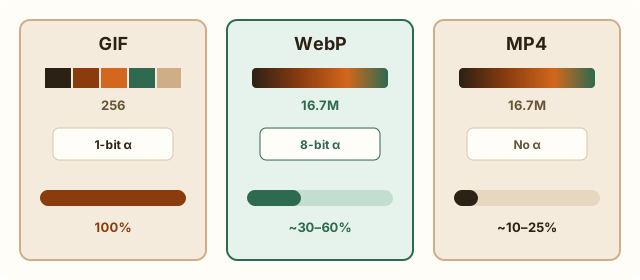
| Feature | GIF | Animated WebP | MP4 (H.264) |
|---|---|---|---|
| Max colors | 256 per frame | 16.7 million (24-bit) | 16.7 million (24-bit) |
| Transparency | 1-bit (on/off only) | 8-bit smooth alpha | Not standard |
| Typical file size | Largest (baseline) | Often 30–60% smaller | Often 75–90% smaller |
| Email client support | High (fallback to frame 1) | Limited in Outlook/older mail | Not supported inline |
| Best use case | Emoji, emails, quick UI loops | Websites, Shopify, stickers | Long demos, social video, hero loops |
Measured examples
Self-authored examples, processed with the same compression engine as this tool. Results vary with the source; these are not promises for your files.
Measurement data (JSON)| Target | Original | Actual size |
|---|---|---|
| Small interface animation | 5,938 Bytes | 4,666 Bytes |
| Moving gradient | 393,536 Bytes | 377,182 Bytes |
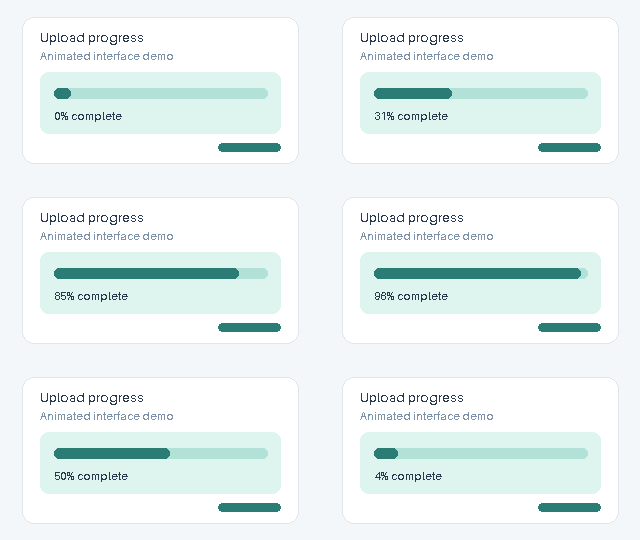
Small interface animation
Original · 5,938 Bytes
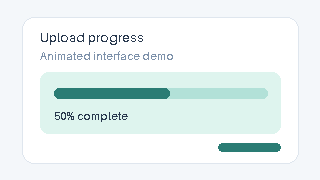
Output · 4,666 Bytes
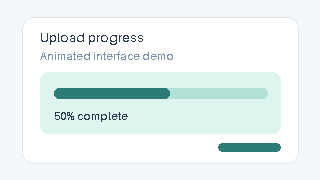
Dimensions: 320 × 180px
Frames: 16 · Duration: 1.6 seconds
Applied settings: 256 Maximum colors · Lossy level 0
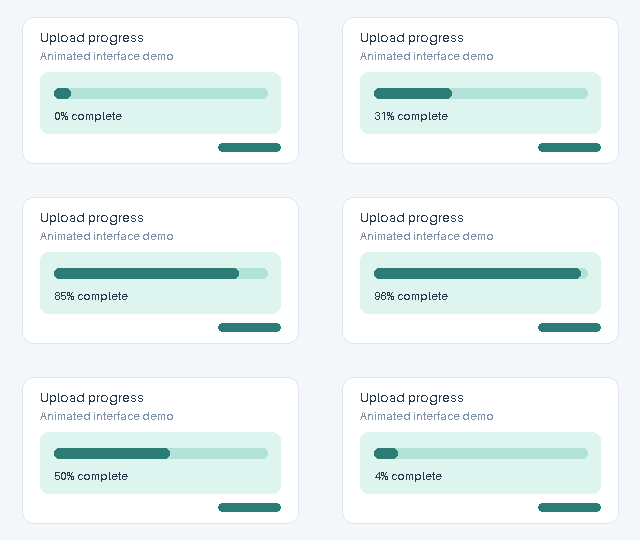
Inspect detail
Original
Output
Moving gradient
Original · 393,536 Bytes

Output · 377,182 Bytes

Dimensions: 320 × 180px
Frames: 16 · Duration: 1.6 seconds
Applied settings: 256 Maximum colors · Lossy level 0


Inspect detail
Original

Output

When should you keep GIF and compress it?
Keep GIF whenever your destination explicitly requires `.gif` (such as Discord/Slack custom emoji, email newsletters, or legacy CMS forms) or when the animation is a short UI recording with flat colors that already compresses tightly.
When should you convert GIF to Animated WebP or MP4?
Switch to Animated WebP when publishing on modern websites, Shopify storefronts, or WhatsApp stickers where smooth transparent edges and rich gradients matter. Switch to MP4 when the clip is longer than 5–10 seconds, full-screen video, or bound for X/GitHub/web `<video autoplay loop muted>` embeds.
- Need email or emoji upload? → Keep GIF and compress
- Need smooth transparency on web/stickers? → Convert to Animated WebP
- Long screen recording or photo motion? → Convert to MP4
- Always verify destination playback before publishing
Watch tutorial video
Frequently asked questions
Is Animated WebP always smaller than GIF?
In most photographic and gradient animations, yes. For tiny flat-color pixel art or 2-frame icons, an optimized GIF can occasionally match or beat WebP—measure both.
Does MP4 support transparent backgrounds like GIF?
Standard H.264 MP4 does not support transparency. Use Animated WebP (or compressed GIF) when you need a transparent background.
Do all browsers support Animated WebP?
Yes, all modern versions of Chrome, Safari, Firefox, and Edge support Animated WebP. Older email clients like desktop Outlook still prefer GIF.